
Account Setup & Profile
Customize your display name, select an avatar, set weekly study goals, and manage Tutor Mode.
Overview
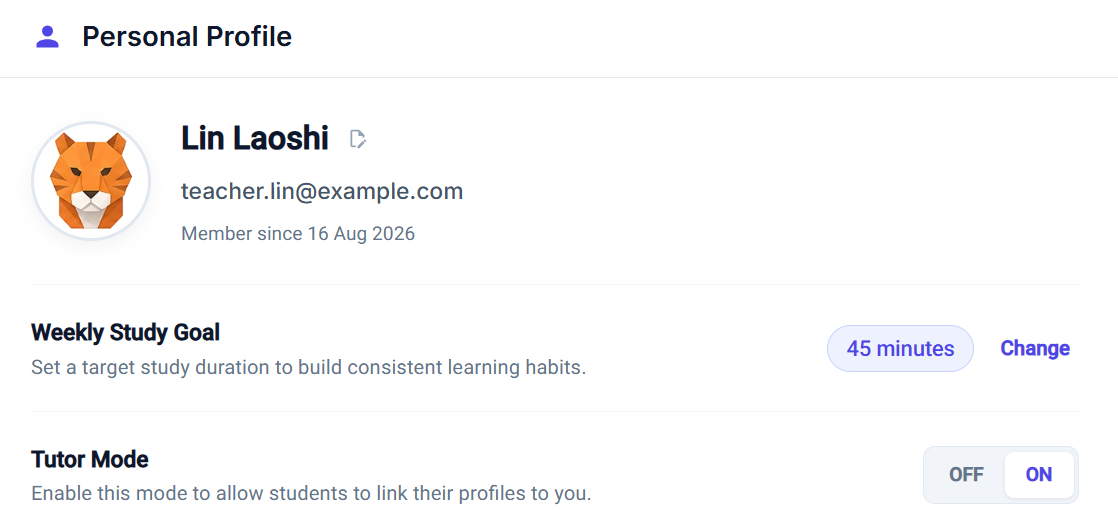
Your Personal Profile controls how you appear to tutors and classmates, tracks your weekly study progress, and configures teacher features.
Access your profile anytime by clicking your avatar in the top-right corner of the top app bar and selecting Account Settings.
Avatar Picker
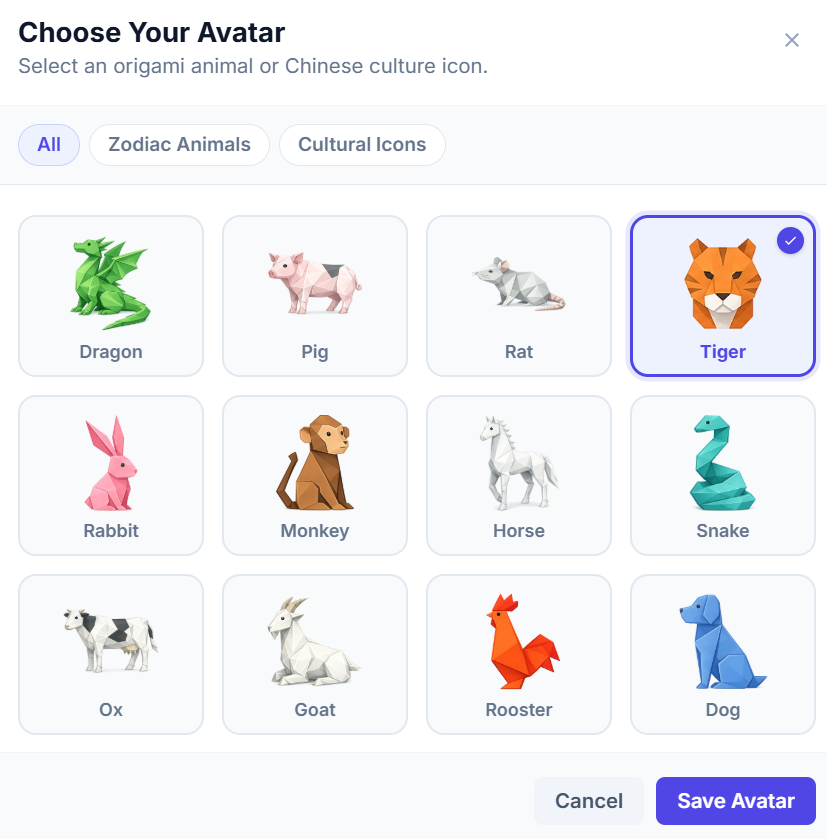
Click your avatar picture to open the selection modal. Choose from origami zodiac animals or cultural icons.
Display Name
Click the edit pencil icon next to your name to change your display name. This name is shown to tutors and on assignment submissions.
Weekly Study Goal
Click Change to set a target study duration (15 mins to 8 hours/week). Active reading and flashcard review automatically fill your dashboard tracker.
Tutor Mode Toggle
Enabling Tutor Mode makes your account searchable by students via email and unlocks classroom management and homework tools.
Avatar Customization
Clicking your avatar picture on the profile card opens the Choose Your Avatar picker. Browse through origami zodiac animals (Dragon, Tiger, Monkey, Dog) or Chinese cultural icons (Boba Tea, Dumpling, Lantern), then click Save Avatar.
App Preferences
You can customize global reading and dashboard defaults at any time by selecting Preferences from your top-right user menu.
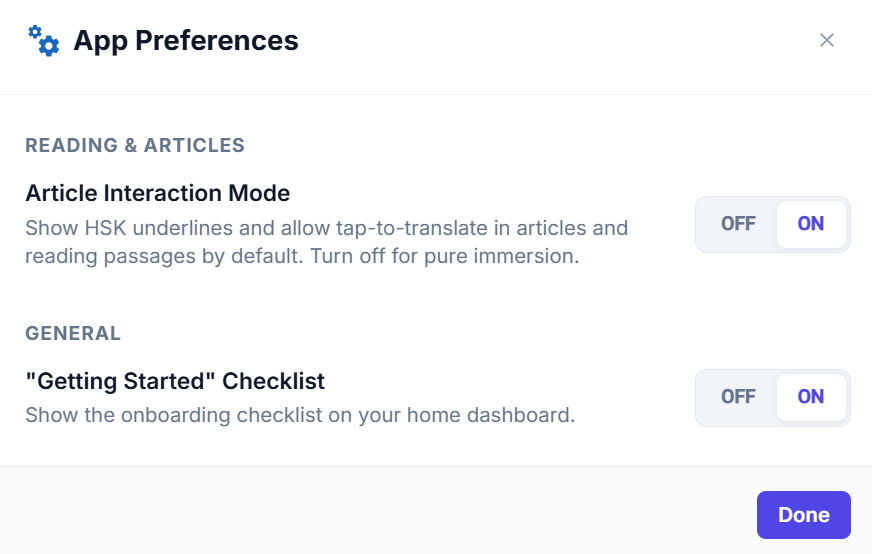
- ON (Default): Highlights target HSK vocabulary with colored underlines and enables tap-to-translate dictionary lookups inside articles and dialogues.
- OFF: Hides vocabulary underlines and dictionary lookups for full immersion character reading.
- ON (Default): Displays the onboarding checklist banner at the top of your home dashboard.
- OFF: Dismisses the checklist banner from your dashboard for a minimalist study view.