
Practice Sheets
Generate custom printable PDF worksheets with stroke order animations, Pinyin guides, and practice grid boxes.
Overview
Master character stroke order with customized PDF practice sheets generated directly in your browser.
On desktop, the Sheet Options panel is pinned on the left with a sticky Generate PDF button that stays in view as you build your list. On mobile, tap Options anytime to adjust layout settings.
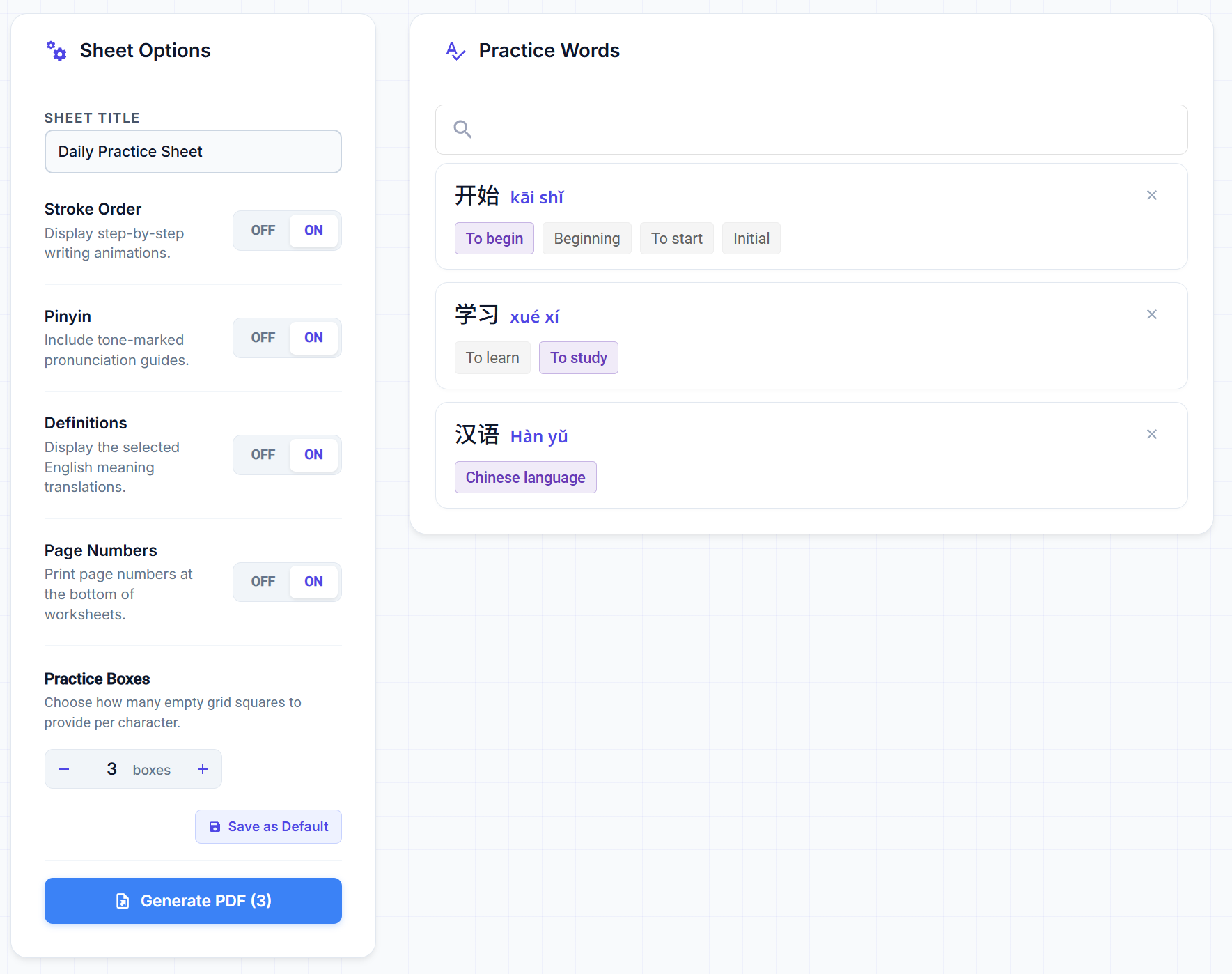
Sticky Sheet Options (Left Panel)
Set a custom title, toggle Stroke Order, Pinyin, Definitions, and Page Numbers, or adjust empty practice box counts (1–5).
Word Search Bar
Search by Chinese characters, Pinyin (e.g. kaishi or kai1shi3), or English keywords to add words to your worksheet.
Target Definition Pills
Click any definition pill to select the exact English translation printed alongside the character on your practice sheet.
Sticky Generate PDF Action
Shows total words queued (e.g. Generate PDF (3)) and stays permanently in view so you can export without scrolling.
Step-by-Step Worksheet Generator
1. Open the Practice Sheets Tool
Navigate to Practice Sheets from the main navigation menu or launch it directly from any Word List, HSK Board, or My Words queue.
2. Configure Sheet Options
Customize your worksheet layout using the left sidebar (desktop) or by tapping Options (mobile):
- Sheet Title: Type a custom header for your worksheet (e.g., "Daily Practice Sheet").
- Display Toggles (ON / OFF):
- Stroke Order: Includes step-by-step writing animation breakdown grids.
- Pinyin: Prints tone-marked pronunciation guides above characters.
- Definitions: Displays your selected English meaning translations.
- Page Numbers: Adds clean pagination at the bottom of the worksheet.
- Practice Boxes: Adjust empty grid squares per character (
1to5boxes) using the–/+stepper. - Save as Default: Click Save as Default to store your configuration for all future exports.
3. Search & Add Chinese Words
Type simplified Chinese characters, Pinyin (e.g. kaishi, xuexi, hanyu), or English keywords into the search box. Click any matching result in the dropdown to add it to your sheet.
4. Select Target Definitions
Each added word displays its available definitions as selectable pills:
- Click the pill that matches the exact meaning you want printed on your worksheet.
- Click the close icon (
×) on the top-right of any card to remove a word from the queue.
5. Generate & Print PDF
Click Generate PDF (e.g. Generate PDF (3)) to immediately compile and download your print-ready A4 PDF worksheet.
1-Click Export (Across the App)
You can also generate pre-filled practice sheets directly from other learning modules without manually searching for each word:
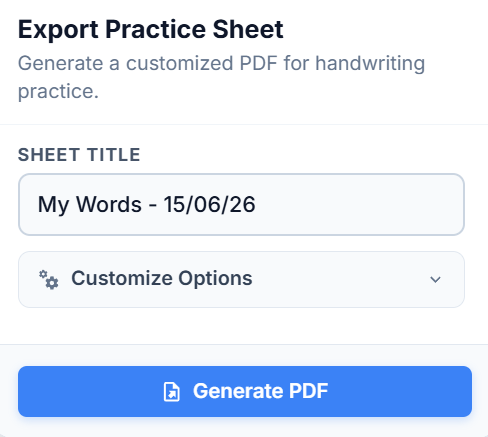
Where You Can 1-Click Export:
- My Words: Export your personal bookmarked study queue for offline handwriting drills.
- Curated Word Lists: Export themed vocabulary decks (e.g., Common Animals, Food & Dining).
- HSK Vocabulary Boards: Export complete level syllabi by HSK tier.
Printing & Paper Tips
- A4 Standard Format: Worksheets are formatted for standard A4 paper size. Set your printer scale to 100% (Actual Size) for accurate square grid alignment.
- Optimal Density: We recommend 3 to 4 compound words (6–8 characters total with 3 practice boxes) to fit a single A4 page cleanly.