Assigning & Grading Tasks
For Tutors: Create reading, vocabulary, and writing assignments, set time/character limits, and grade student submissions.
Overview
When you are linked with students, you can create and assign targeted coursework directly to their dashboard—including reading passages, vocabulary quizzes, and written Chinese compositions.
Creating a New Task
To create an assignment:
- Navigate to Manage Students and click New Task.
- Select your Task Type from the dropdown.
1. Configure Basic Assignment Details
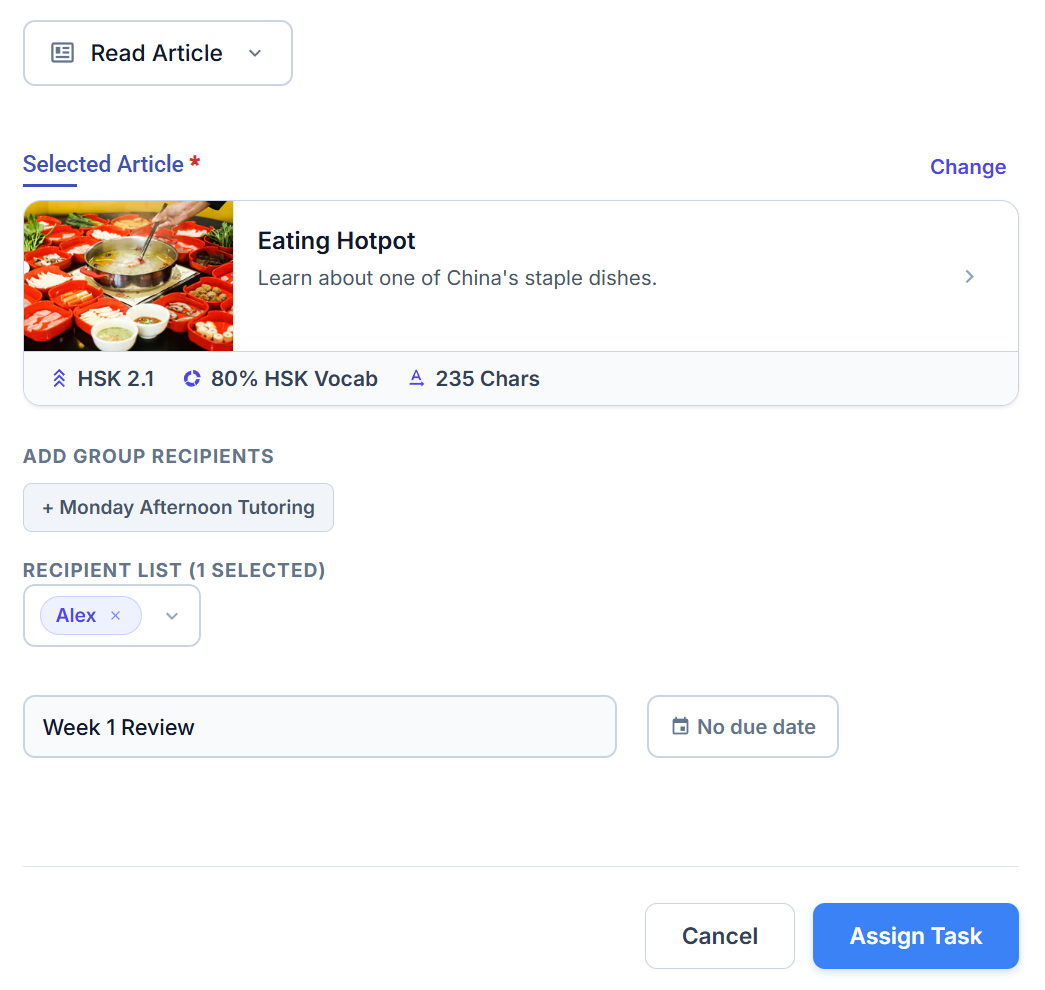
In the first step, choose your recipients (+ Group or individual students), set the task title, and select an optional Due Date.
2. Set Task-Specific Parameters
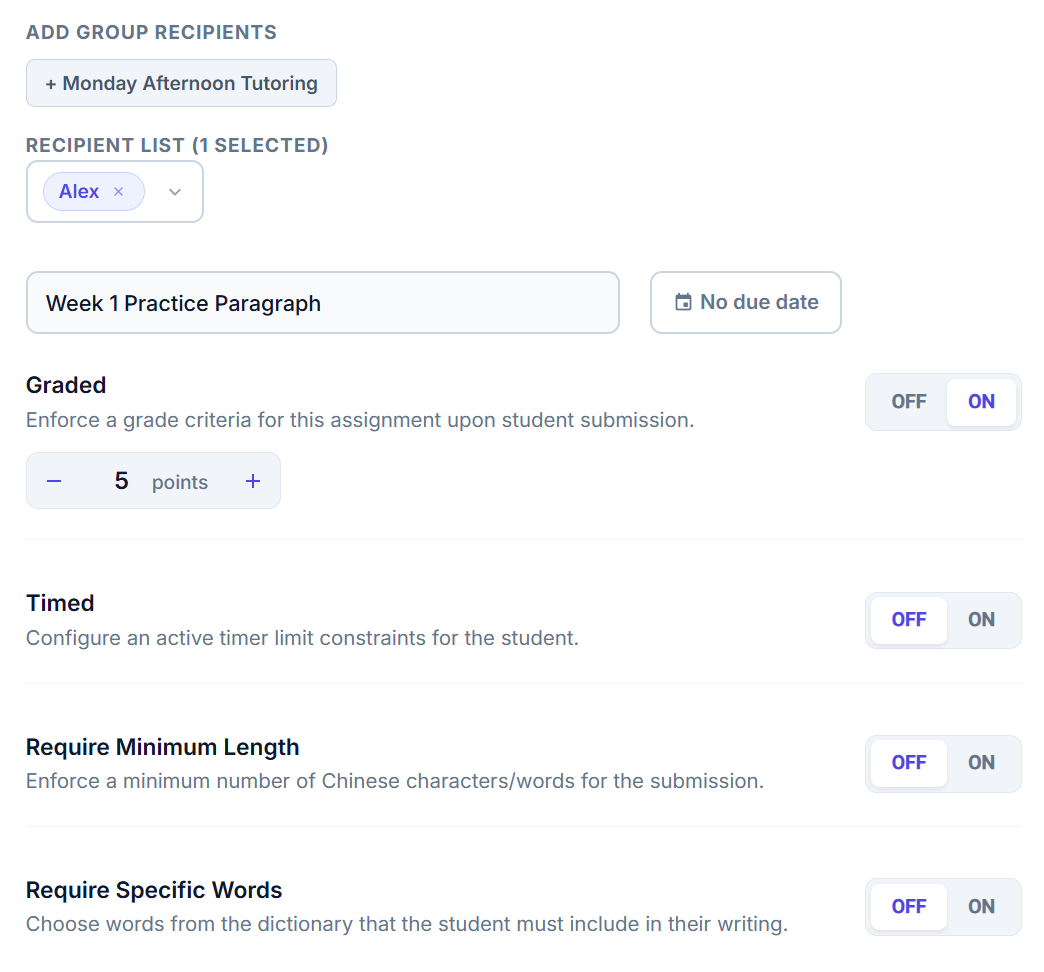
Depending on the Task Type selected, you can configure advanced constraints. For example, when assigning a Write Text Block composition, you can enable graded points, timer limits, minimum length requirements, and mandatory vocabulary.
Click Assign Task to push the assignment to your student's dashboard immediately.
Deleting or Fixing a Mistaken Task
If you ever make a mistake while configuring an assignment—such as a typo in the title, selecting the wrong student group, or setting an incorrect time/length constraint—you can delete it at any time:
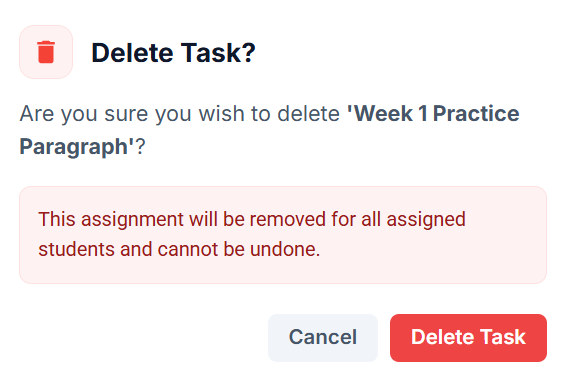
- Open the task from your Assigned Tasks directory.
- Click the Delete () icon in the header.
- Click the red Delete Task button to confirm.
Instant Real-Time Sync
Deleting an assignment immediately removes it from all assigned students' inboxes in real time—they don't even need to refresh their page. You can then recreate the task with your corrected settings right away!
The 4 Assignment Types
- Content: Select any published reading passage or story from the catalog.
- Scoring: Ungraded. Automatically marks as Completed once the student finishes reading.
- Retries: Unlimited.
- Content: Import a curated Word List or select custom dictionary terms with targeted definition pills.
- Scoring: Ungraded. Marks as Completed after reviewing cards.
- Retries: Unlimited.
- Content: Multi-modal quiz covering Pinyin typing, tones, and character picking.
- Scoring: Automatically graded (1 point per word).
- Constraints: Single attempt only. Optional time limit (countdown timer).
- Content: Freeform Chinese paragraph writing and translation on the digital composition canvas.
- Scoring: Manually graded by the tutor with custom maximum points (e.g. 5 or 10 pts).
- Constraints: Single attempt only. Optional minimum character count (e.g. min 20 chars) and required vocabulary.
Task Types Comparison Matrix
| Task Type | Content | Grading Method | Timed Option? | Retries? | Special Constraints |
|---|---|---|---|---|---|
| Read Article | Catalog Passage | Ungraded (Auto-complete) | No | Unlimited | Full reading tracking |
| Vocab Review | Custom / Word List | Ungraded (Auto-complete) | No | Unlimited | Flashcards & stroke order |
| Vocab Test | Custom / Word List | Auto-Graded (1 pt / word) | Optional | 1 Attempt | Multi-modal quiz engine |
| Composition | Freeform Writing | Manual Tutor Grade | Optional | 1 Attempt | Min. length & required words |
Reviewing Submissions & Grading
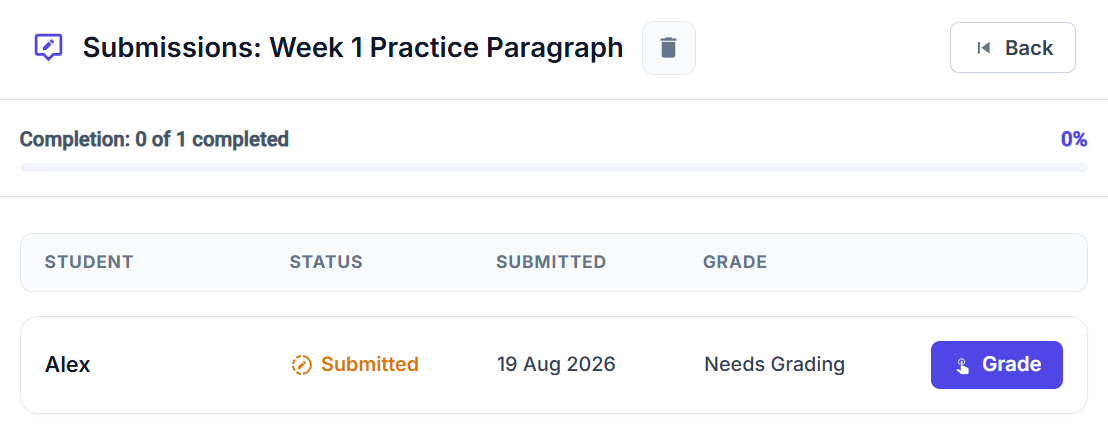
When students submit compositions, your Manage Students dashboard updates in real time:
1. Submission Alert & Directory
Submissions awaiting your review are highlighted with a yellow Submitted / Needs Grading status badge.
2. Enter Grade & Feedback
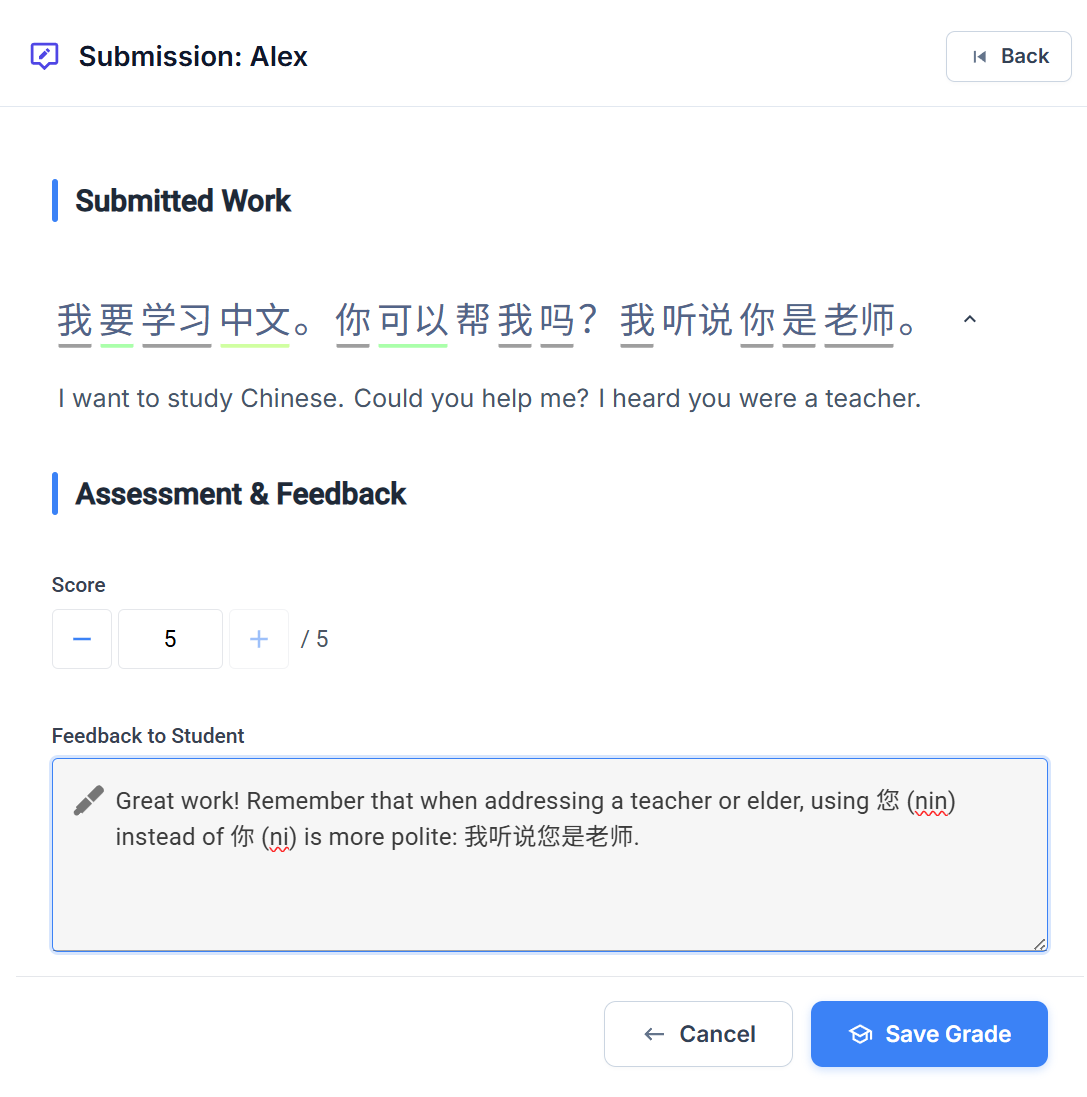
Click Grade to view the student's Chinese composition and English translation side-by-side. Assign a numeric score, write personalized feedback notes, and click Save Grade.
3. Real-Time Publication
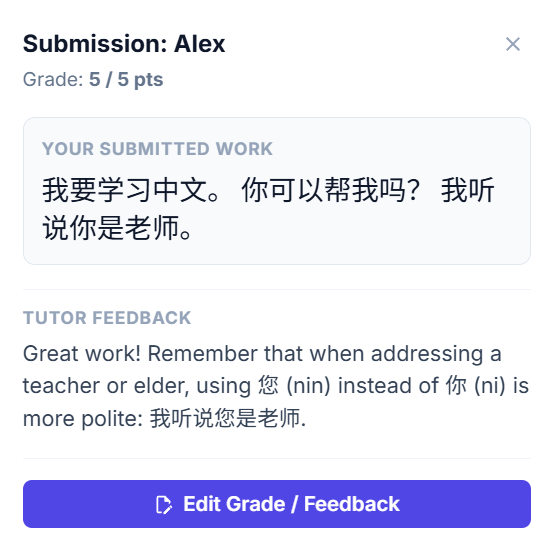
The student is immediately notified of their grade. You can click View on the submission row to review your remarks or click Edit Grade / Feedback if you ever need to adjust a score.