
Assignments & Homework
How to complete tutor-assigned tasks, use the Chinese composition canvas, receive teacher announcements, and view grades.
Overview
Whenever your private tutor or coach assigns coursework, it appears in your My Tasks dashboard. You will receive an instant notification banner and a navigation badge counter alerting you to new homework and announcements.
Starting a Task (1-Attempt Safety Warning)
- Casual Practice (Articles & Vocab Review): Can be opened, re-read, and practiced as many times as you like.
- Formal Tasks (Tests & Compositions): These are single-attempt assignments to ensure academic integrity.

2. Confirm Single-Attempt Warning
A confirmation modal will appear reminding you of the point value and single-attempt constraint. When you are ready to start, click Start Task:
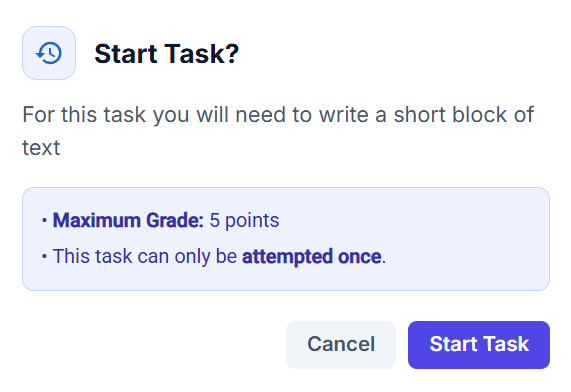
Do Not Close Active Tests
Closing or navigating away from an active, single-attempt task before submitting will lock your attempt and record an incomplete score.
The Chinese Composition Canvas (Write Text Block)
For writing assignments, HanyuHub provides an interactive composition workspace:
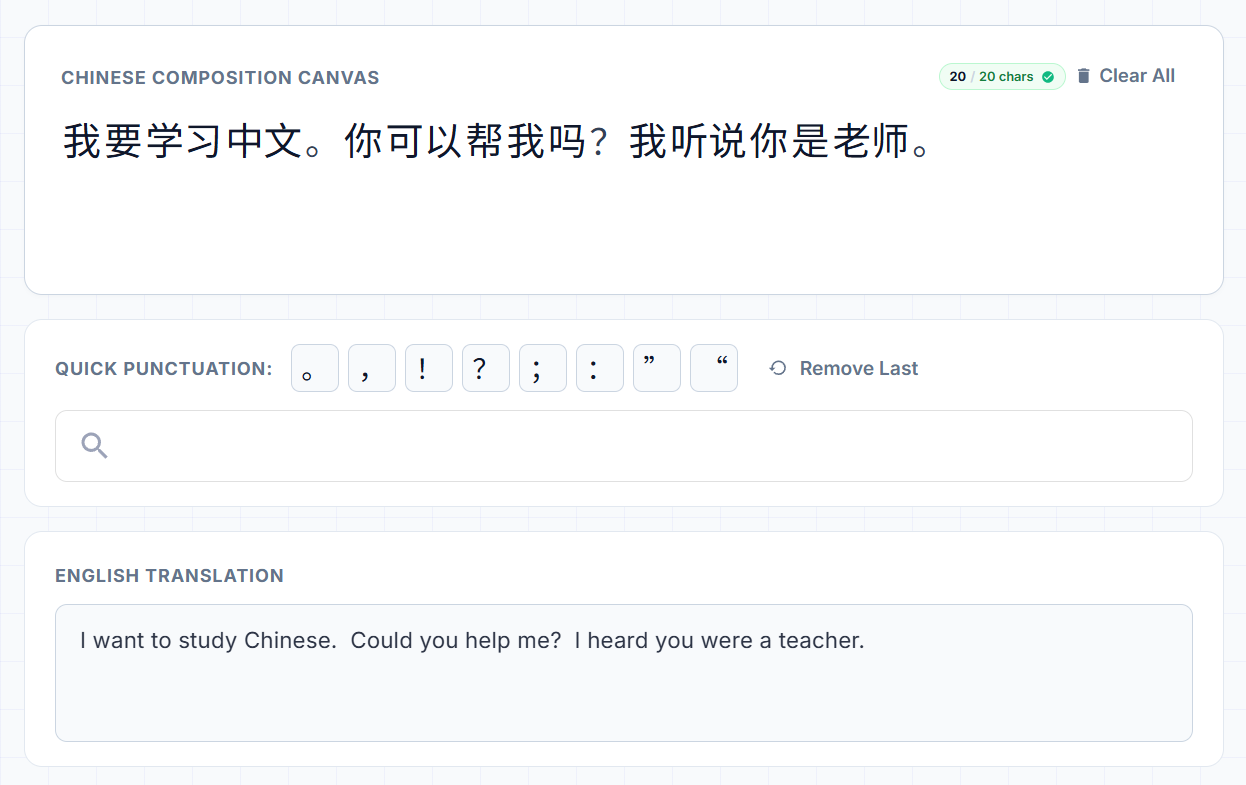
- Live Character Counter: Displays your real-time character count against your tutor's requirement (e.g.
20 / 20 chars). - Quick Punctuation Palette: One-tap buttons for standard Chinese punctuation marks (
。,,,!,?,、,:,”,“). - English Translation Box: Write the corresponding English meaning beneath your Chinese text.
- Submit Work: When you meet all length and vocabulary requirements, click Submit Work to send your composition to your tutor.
Viewing Grades & Feedback
1. Submitted State (Awaiting Review)
Once submitted, your task card displays an amber Submitted () icon. Click the card anytime to confirm your submitted text while waiting for your teacher.
2. Graded Notification
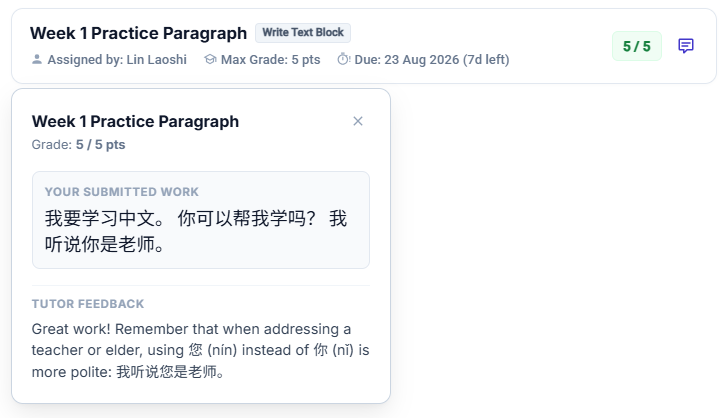
As soon as your tutor grades your work, you will receive a toast alert and your task card updates to Completed with your score (e.g., 5 / 5).
3. Read Tutor Feedback
Click the task card to open the Submission Feedback sheet and read your tutor's written suggestions, grammar corrections, and praise.
How Tasks Are Scored (Instant vs. Tutor Review)
Different assignments resolve in different ways once you finish:
- No Waiting Required: Vocabulary quizzes are automatically graded in real time (1 point per word).
- Instant Results: The second you submit your last question, your final score (e.g.
8 / 10 pts) and completion badge appear on your dashboard immediately. Your tutor can see your score in their gradebook without doing any manual grading.
- Awaiting Review: Because compositions involve freeform writing, your submission moves to Submitted () status while waiting for your teacher.
- Graded Notification: As soon as your tutor evaluates your text and leaves feedback notes, your score updates to Completed and you receive a notification alert.
- Practice Only: These are ungraded. They mark as Completed the moment you finish reading the passage or reviewing the flashcards.
Tutor Announcements & Messages
Your linked tutors can broadcast important schedule changes, class reminders, or study tips directly to your account.
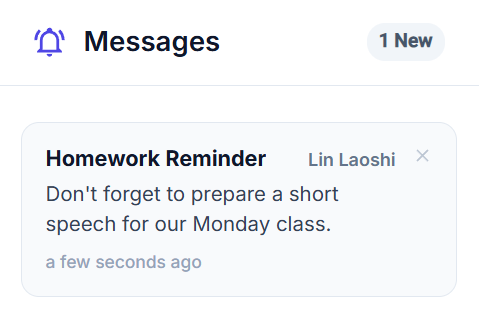
- Home Dashboard & My Tasks: New announcements land in the Messages widget and badge the Messages tab in My Tasks (e.g.
1 NeworMessages (1)). - Message Breakdown: Each message card displays the announcement title, the tutor's name (e.g. Lin Laoshi), the message text, and the time received.
- Dismiss Button (
×): After reading an announcement, click the close icon (×) in the top-right corner of the card to dismiss it. - Badge Updates: Dismissing a message removes it from your active list and automatically decrements your unread badge counter.