
The Character Action Panel
How to view stroke order animations, example sentences, and word definitions whenever you tap a character.
Overview
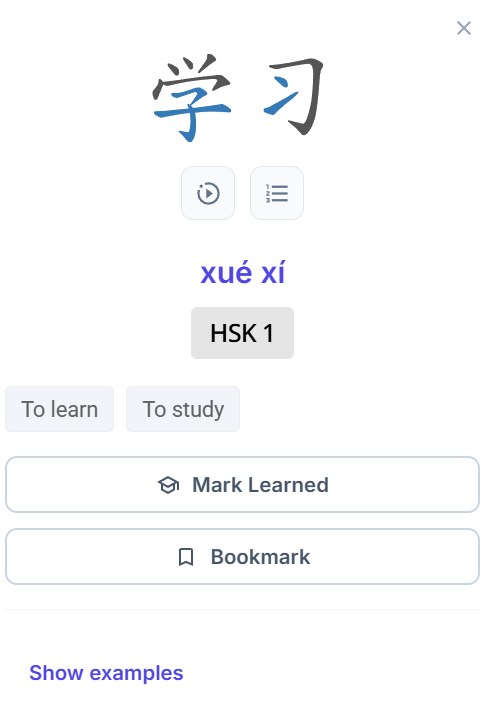
Whenever you click or tap any Chinese character across HanyuHub—inside an article, lesson, sentence list, or searcher—the Character Action Panel opens immediately.
Interactive Stroke Order Animator
Click the play button to watch stroke order animations, or click the grid icon to toggle reference guidelines.
Pinyin, HSK Level & Definitions
View standard Pinyin tones, official HSK 1–6 difficulty badges, and formatted English definitions.
Quick Action Buttons (Learned / Bookmark)
Toggle whether you have mastered this word or save it directly to your My Words study list.
Real-World Example Sentences
Click Show Examples to fetch real usage sentences featuring this word with highlighted characters and audio.
Panel Features
- Animate Strokes: Click the play icon to watch step-by-step handwriting animations for each character.
- Toggle Stroke Grid: Click the numbered grid icon to overlay reference guidelines for handwriting practice.
- Displays standard Pinyin tone marks and official HSK 1–6 difficulty level badges.
- Shows formatted English definitions separated by part of speech.
- Mark as Learned: Toggle whether you have mastered this word (see Marking Words as Learned).
- Bookmark Word: Save the word directly to your My Words study list.
- Click Show Examples to fetch real example sentences using this target word.
- Each example displays highlighted target characters, Pinyin guides, and English translations.
The Interactive Reading Toolbar
Master the floating control bar to customize Pinyin, translations, audio, dual-column view, and study timers.
Headers, HSK Badges & Difficulty Metrics
Learn how HanyuHub calculates HSK levels, official vs. estimated (ᴱ) badges, NON-HSK labels, and passage coverage scores.